
Quick answer: Website speed optimization means making your pages load quickly for real visitors, especially on phones. The main fixes are compressing and resizing images, using caching, cutting unused scripts and plugins, and choosing hosting that fits your traffic. Measure the page with PageSpeed Insights and Core Web Vitals, then fix the slowest part first.
A slow website costs you visitors before they read a word. Someone who searches on a phone in Karachi and waits too long for your page will often go back and choose a competitor. If you want a team that audits, rebuilds and tunes your site for speed, our website development in Karachi team can take the work from start to finish. If you want to understand what to fix and in what order, this guide walks through it step by step.
Why website speed matters for visitors, rankings and leads
Website speed affects three things at once. Visitors judge a page by how quickly it appears and responds, so a slow page feels unreliable even if the content is good. Search engines measure real-world experience as part of how they assess pages, so a slow site can make it harder to compete for search results. Speed also affects leads, because a slow form, button or checkout gives the visitor time to change their mind.
Speed problems are often invisible to the owner. The website looks fine on a fast office computer on fibre internet, but it may take several seconds to show on a mid-range phone over mobile data. That is why speed should be tested on the devices and connections your customers actually use.
Know the Core Web Vitals targets
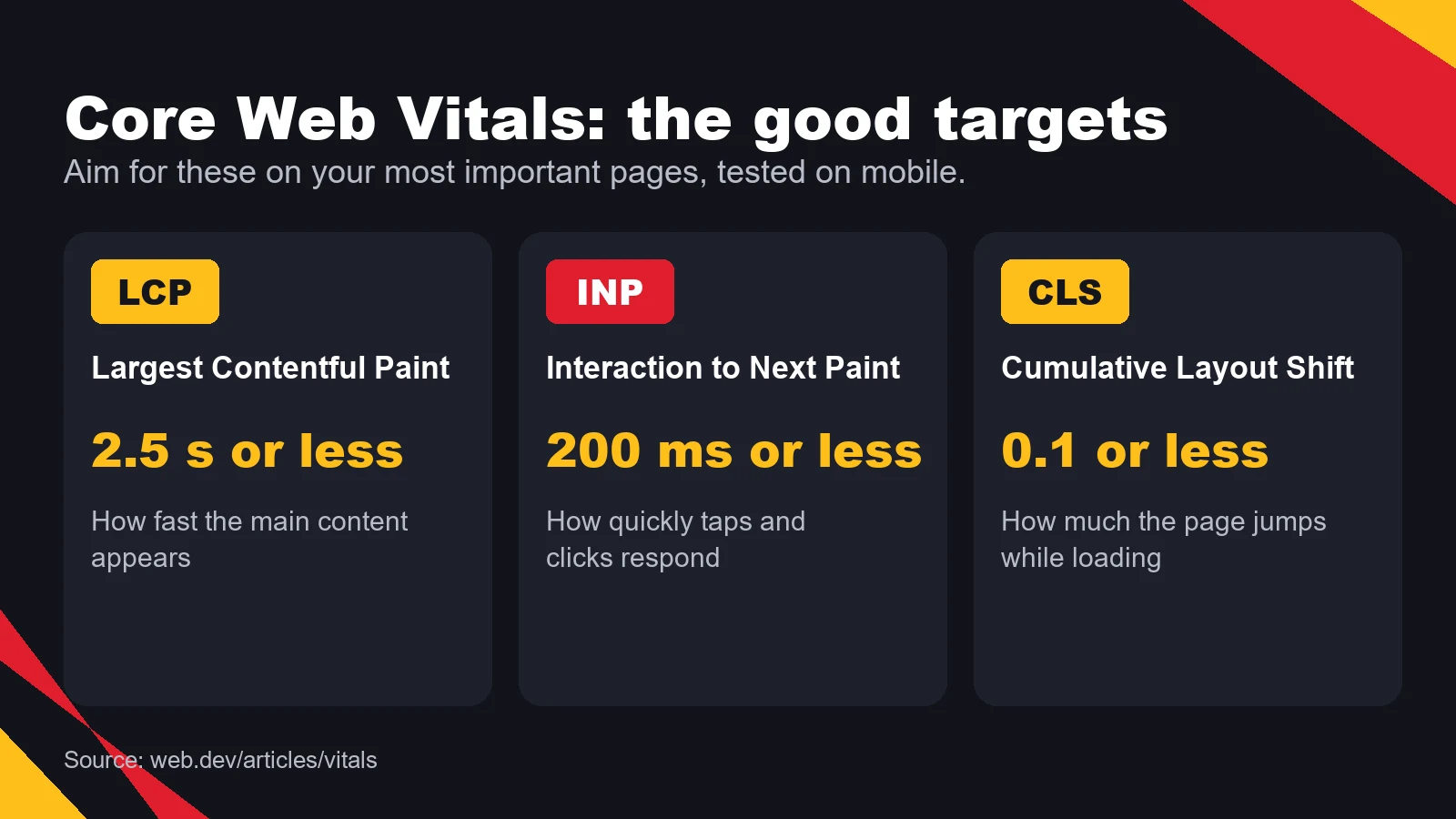
Core Web Vitals are three measurements from Google that describe how a real visitor experiences a page. They are the most useful targets for speed work because they describe what the visitor sees rather than a technical score. The table below shows the "good" thresholds Google uses. You can read the full definitions on web.dev's Core Web Vitals guide.
| Metric | What it measures | Good target |
|---|---|---|
| Largest Contentful Paint (LCP) | How long the main image or text block takes to appear | 2.5 seconds or less |
| Interaction to Next Paint (INP) | How quickly the page responds when a visitor taps or clicks | 200 milliseconds or less |
| Cumulative Layout Shift (CLS) | How much the page content jumps around while loading | 0.1 or less |
Treat these numbers as a guide for where to start, not a pass or fail test for your business. A page that misses the target by a little may still convert well, and a page that passes may still have a slow checkout. Use the targets to find the pages that need attention, then check the visitor journey on those pages.
How to test your website speed
Start with a baseline, so you can see whether each change helps. Record the scores for your homepage, your top service page and your most important form page before you change anything. Then repeat the same tests after each fix.
- Run your key pages through PageSpeed Insights, and read the mobile results first because most visitors arrive on phones.
- Open the Core Web Vitals report in Google Search Console to see which pages Google groups as slow or needing attention.
- Test on a real phone over mobile data, and time how long the main content takes to appear.
- Read the list of opportunities in the report and sort them by the time they could save and how hard they are to fix.
- Write down the top three problems, then fix them in order before starting anything else.
Check speed again after every major change, such as a new theme, a plugin update or a redesign. Speed often slips back over time when new images, videos and tracking tags are added to a page without anyone checking the effect.
Compress and resize images first
Images are the most common cause of slow pages. A photo straight from a camera or a phone can be several megabytes, while the same picture on a web page needs to be a fraction of that size. Resize every image to the largest size it will be shown at, then compress it. Modern formats such as WebP are usually smaller than JPEG or PNG at a similar quality, and most current browsers support them.
Load images only when they are needed. Images that appear lower on the page can wait until the visitor scrolls near them, which lets the top of the page appear faster. Set the width and height of each image in the code, so the layout does not jump while images load. This also helps the layout stability score. For how images should adapt to different screen sizes, see our guide on why responsive web design matters.
Use caching so pages do not rebuild on every visit
Caching stores a ready copy of your page so the server does not need to build it again for every visitor. Most content management systems, including WordPress, have caching plugins or hosting settings that do this. Caching works best on pages that change rarely, such as service pages and blog posts. Pages that show personal details, such as a logged-in account or a cart, need special rules so that one visitor never sees another visitor's information.
A content delivery network, usually called a CDN, keeps copies of your images and files on servers closer to your visitors. This helps when your audience is spread across the country or abroad, such as customers in Dubai or the UK. Ask your hosting provider or developer whether a CDN is worth adding for your traffic.
Remove plugins, scripts and widgets you do not use
Every plugin, font, chat widget and tracking tag asks the browser to download and run more code. Over time many websites collect tools that nobody uses. Review the list every few months, switch off anything that does not support a current goal, and delete it once you are sure it is not needed. Also check the third-party scripts that load on every page, such as social feeds, video embeds and heat-mapping tools. Load them only on the pages where they are useful.
Be careful with plugins that promise to speed up a site automatically. Some of them change how the site loads in ways that break forms, menus or checkout. Test every change on a copy of the site first, and check that your forms still send the lead to the right place.
Choose hosting that fits your traffic
Hosting is the server your website runs on, and a weak server limits every other fix. A shared plan that is cheap may work for a small brochure site, but it can slow down when traffic rises or when a neighbouring site on the same server uses too many resources. Ask your provider about server location, the amount of memory and processing power included, and whether they support caching and up-to-date software versions.
Good hosting is not the same as expensive hosting. Compare the plan against the pages you need to serve, the number of visitors you expect and the speed you measured in your baseline. For many businesses, a well-configured plan with caching and a CDN gives better results than a more expensive plan that is left at default settings. Our guide on how a great website can boost your business explains why a fast, reliable site is part of the investment, not an extra.
Common speed problems and the fixes that usually work
| Problem | Usual cause | Fix to try first |
|---|---|---|
| Main image takes a long time to appear | A large, uncompressed image at the top of the page | Resize and compress the image, then serve it in WebP |
| Page responds slowly to taps | Heavy scripts that run while the visitor is using the page | Remove unused scripts and load the rest after the main content |
| Layout jumps while loading | Images, ads or embeds without set sizes | Set width and height for images and reserve space for embeds |
| Slow on every visit | No caching, or pages rebuilt for every visitor | Turn on page caching and check that dynamic pages are excluded |
| Slow for visitors far from the server | One server location for all visitors | Add a CDN for images and static files |
Website speed checklist
- Record a baseline for your homepage, main service page and form page on mobile.
- Resize and compress every image, and use WebP where your site supports it.
- Set width and height on images and embeds so the layout stays still.
- Turn on page caching and exclude pages that must always be live, such as the cart.
- Remove plugins, fonts and scripts that no longer serve a clear purpose.
- Load third-party tools only on the pages that need them.
- Check hosting capacity and server location against your real traffic.
- Retest after each change and keep a simple log of the scores.
Related guides: Why Responsive Web Design Matters, 5 Ways a Great Website Boosts Your Business and Technical SEO Audit Checklist.
Frequently asked questions
What is a good website speed?
Google's Core Web Vitals guide sets the "good" targets: largest contentful paint of 2.5 seconds or less, interaction to next paint of 200 milliseconds or less, and cumulative layout shift of 0.1 or less. Aim to meet these on your most important pages first, and measure them on mobile because that is where many visitors arrive.
Does website speed affect Google rankings?
Speed is one of several signals that Google uses to assess page experience, and it works alongside content quality and relevance. A faster site does not guarantee a higher ranking, but a slow site can make it harder to compete. Speed also affects how many visitors stay long enough to read, enquire or buy.
Which is more important, hosting or design?
Both matter, and they fix different problems. Hosting decides how quickly the server responds, while design decides how much the browser has to download and run. A simple design on weak hosting will still be slow, and strong hosting cannot rescue a page with huge images and dozens of scripts. Start with the fixes that cost little, such as image compression and removing unused plugins, then review hosting once the site is lean.
Can I improve speed without a developer?
Yes, for many basic fixes. Image compression, a caching plugin, removing unused plugins and turning off features you do not use can be done by a site owner with care. Changes to theme code, server settings or checkout pages carry more risk, so ask a developer to handle them and always test on a copy of the site first.



1 comment